
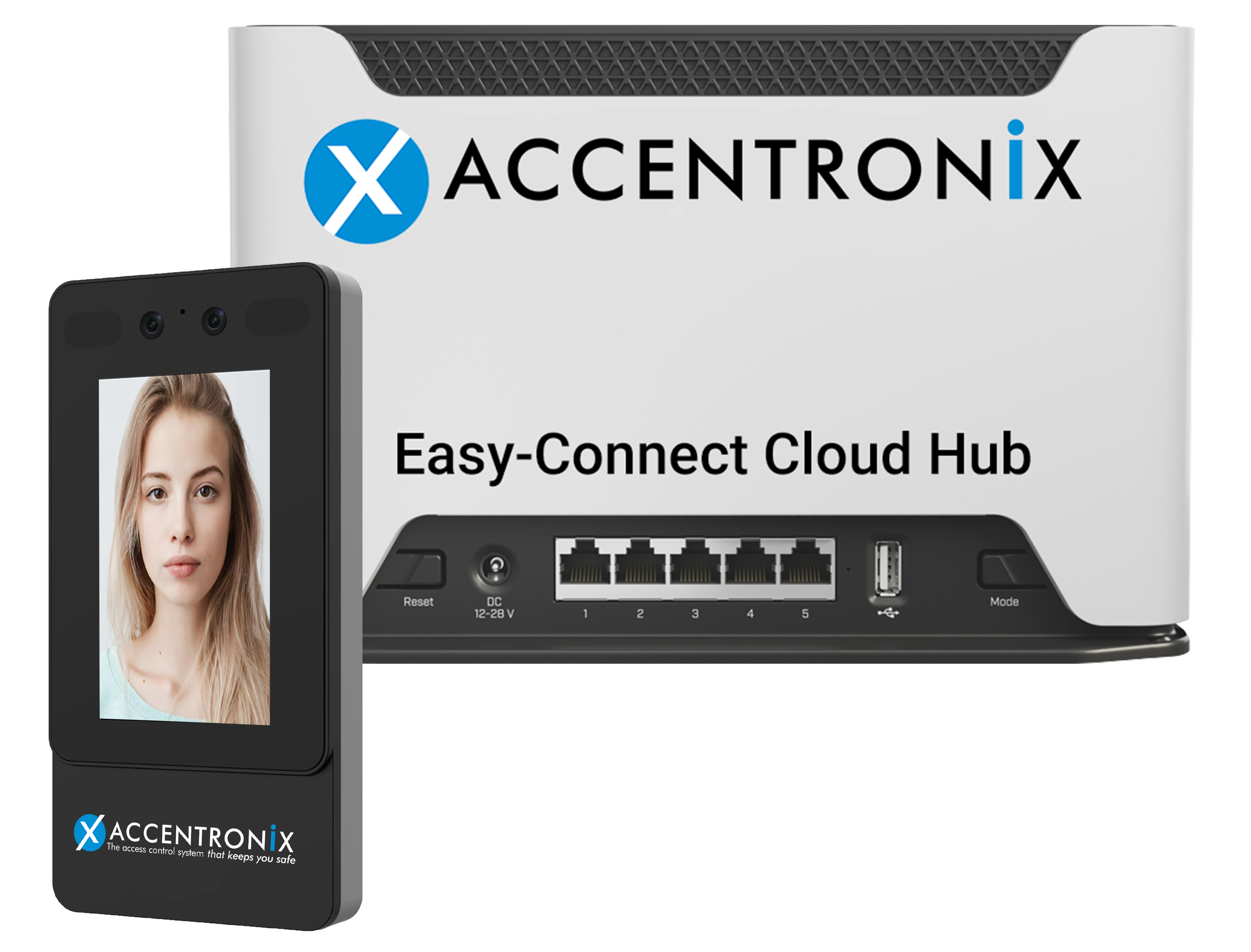
Features
Main Features
EASY-CONNECT FACIAL RECOGNITION SYSTEM
- Effortless Plug and Play installation.
- Fully integrated with the Accentronix eco system.
- Can be installed and configured in minutes by anyone.
- No special training or PC needed.
- Users enrol their own faces through the Accentronix Smart Home App.
- Effortless Plug & Play installation. No special training or PC needed - just instant use.
- Can be installed and configured in minutes by anyone.
- Simply apply power and register/manage the system on the Accentronix website via the Login page.
- Users enrol their own faces through the Accentronix Smart Home App.
- Users and restrictions are managed seamlessly online.
- Subscription includes: Unlimited users and connected facial scanners, SIM & data.
- Free for the first year, then R350/month (Billed Annually)
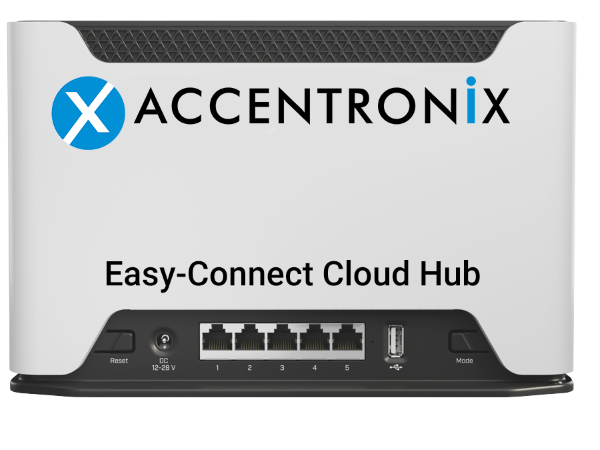
The Easy-Connect Cloud Hub features a built-in 4G/LTE SIM managed by Accentronix, with optional fibre connectivity via LAN port 5.
Step 1: Connect the Facial Scanners to LAN ports 1-4 on the Easy-Connect Cloud Hub.
Step 2: Supply 12Vdc power and connect the (N/O, COM and N/C) relay output of the facial scanner to control the gate/door.
Step 3: Visit www.accentronix.co.za, navigate to the Login page, sign into your Accentronix Portal and click on ‘Register Device’.
Step 4: Add access control users and their restrictions.
Step 5: Users will receive a welcome WhatsApp to download the Accentronix Smart Home App.
Step 6: A new user will then use the Accentronix App to take a selfie and enrol themselves.
Administrators can choose whether registered access-control users may enrol themselves or if their selfies must be manually verified first.
Use any LAN switch to increase the number of available ports if additional facial scanners need to be connected. New Facial Scanners will
automatically appear on the Accentronix portal once plugged in.
Settings such as detection distance and pulse duration are configured directly from the website.
The system continues to operate at 100% even if the internet connection is temporarily lost.
IMPORTANT: All security settings and IP addresses are preconfigured on both the Facial Scanners and the Easy-Connect Cloud Hub. All settings are locked, making it impossible to change anything by connecting the devices to your own computer.
- Liveness detection and anti-spoofing using the latest facial recognition technology.
- Can be mounted outside on a gooseneck with a stainless steel rainshield.
- Supports up to 1500 faces.
*Included sim cards for South Africa only.
*Sim cards managed with subscription - Please see Terms of service